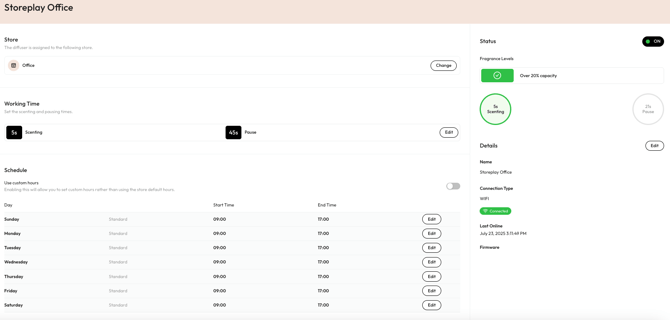
Before you begin: Please ensure the store has a 2.4GHz Wi-Fi network available. The scenting devices cannot connect to 5GHz networks.
Phase 1: Account Registration & Login
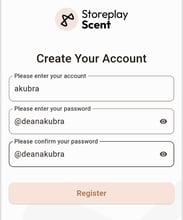
First, you'll need to create an account in the Storeplay Scent app.
- Open the app and tap ‘Get Started’.
- Select ‘Register’ (located below the ‘Log In’ button).
- Create your account using the client details from the Admin portal.
Username: This will be your brand name
Password: You can set your own personal password.
Phase 2: Connecting the Device to Wi-Fi
Next, you will connect the scenting device to the local network.
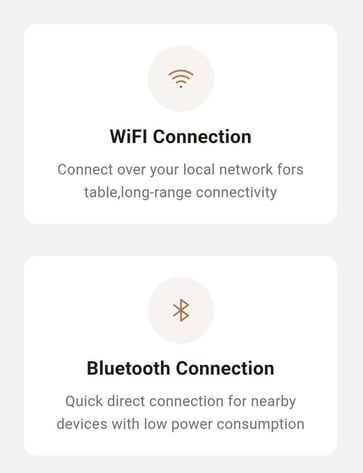
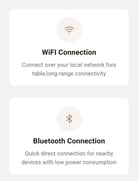
- From the main screen, select ‘Wi-Fi Connection’.
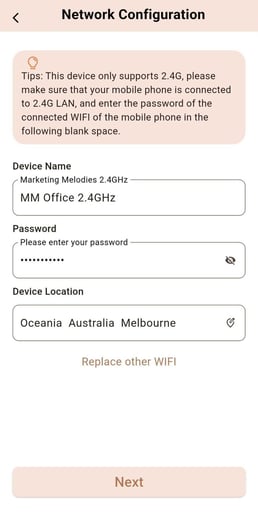
3. Enter the store’s Wi-Fi Network Name (SSID) and Password.
4. Select the device’s location and tap ‘Next’.
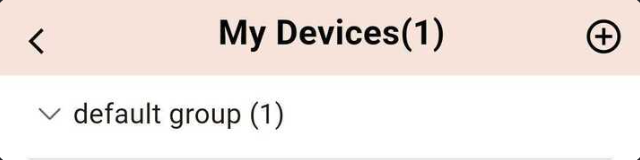
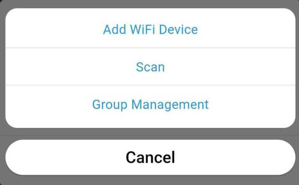
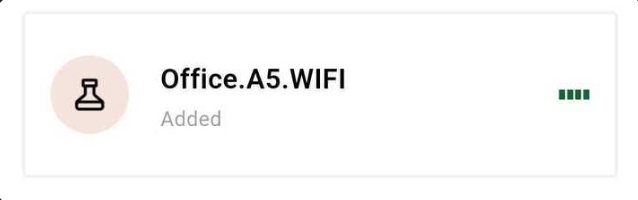
Note: If prompted for a PIN, enter ‘1234’ and tap ‘Confirm’.
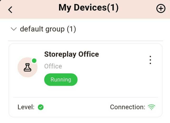
8. You will now see the newly added device in your list. Press the ‘<’ back arrow at the top of the screen.
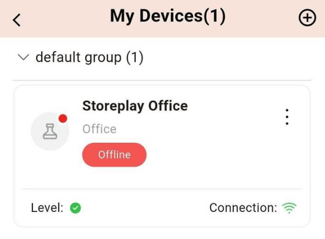
Phase 3: Final Configuration & Admin Verification
Finally, you will assign the device to its specific store and adjust its settings.
- In the device settings screen, tap ‘Change’ next to the "Store" section.
- Select the correct store to assign the device to and tap ‘Confirm’.
- From this screen, you can also manage other settings:
-
Turn the device on or off.
-
Set a custom schedule or have it follow standard store hours.
-
Adjust the work/rest timing (spray vs. rest intervals) by tapping ‘Edit’.
4. To complete the process, log in to the Admin portal and navigate to the ‘Scent’ page. You will see the new device listed as online, confirming a successful setup.